![thrivable-light.png]](https://help.thrivable.app/hs-fs/hubfs/thrivable-light.png?height=40&name=thrivable-light.png)
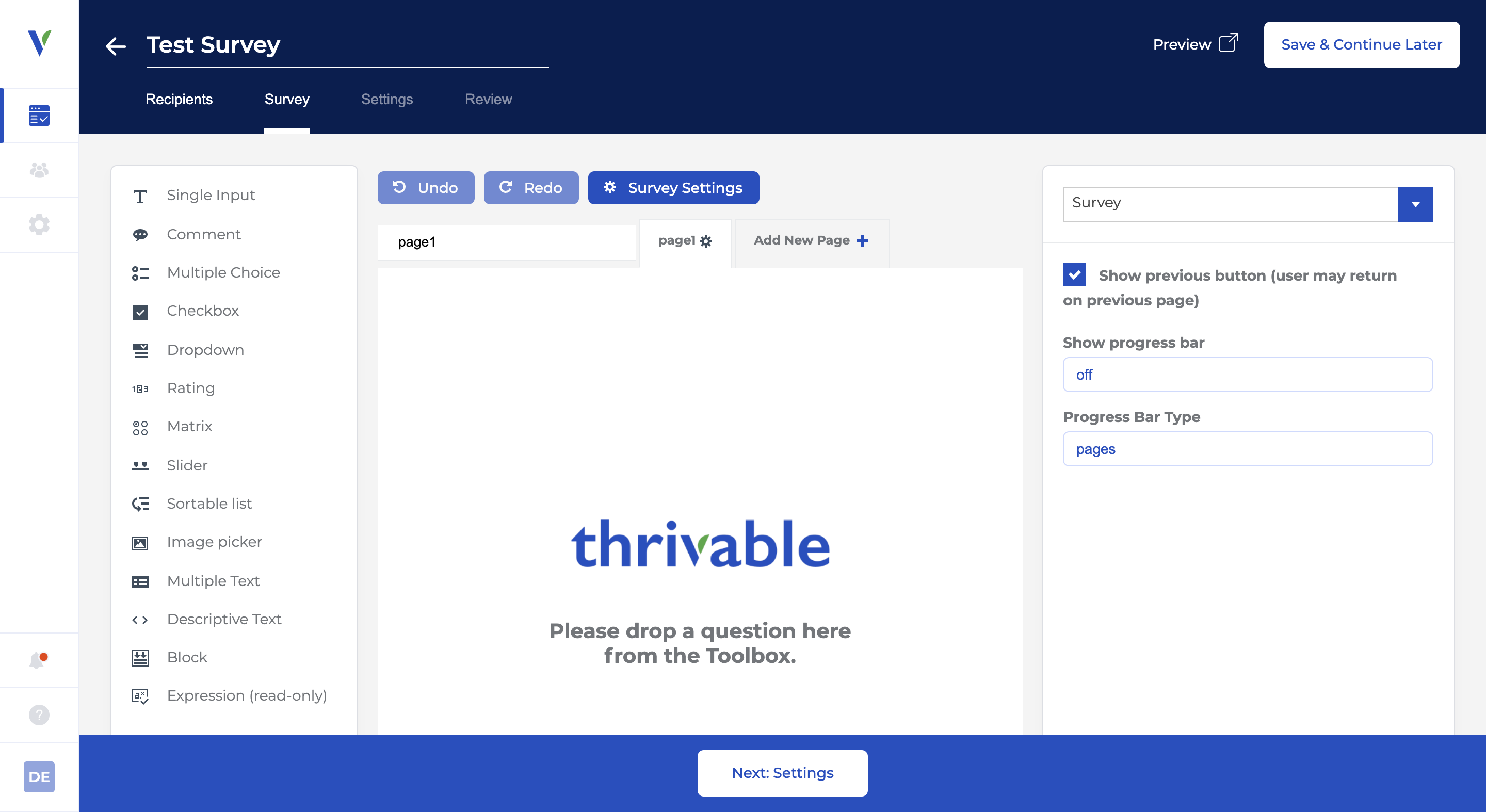
The Survey tab is where you create your survey.
- The left side of the page contains question types.
- The center part of the page is where you drag and drop question types to create surveys.
- The right side of the page includes advanced settings, such as question logic and randomization.
Pages
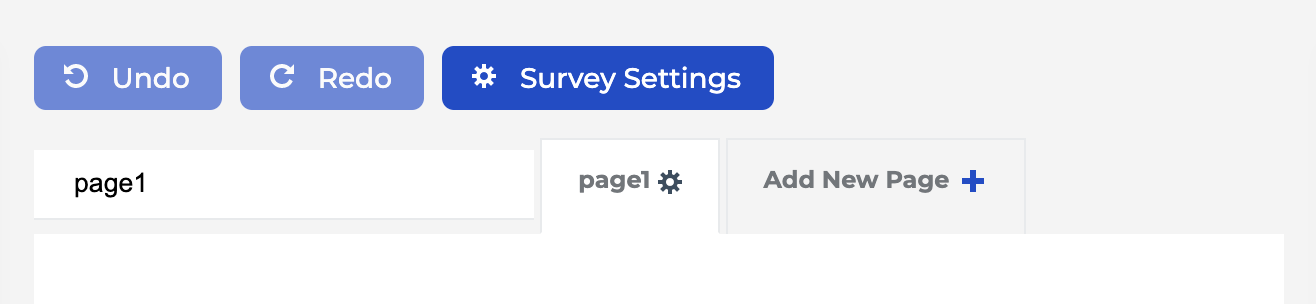
By default, every question appears on a different page. You can create pages to group a series of questions and apply conditional logic.
For example, let's say you only want to show a group of questions to people who answered Question 1 = "Yes". You could create a new page and use the logic settings on the right side to only display the page to those who selected Question 1 = "Yes".
Question Types
Single Input
Enter text in a single line field with optional text validation.
Validation
The following types of input validation are available:
- Expression
- Numeric - select a minimum and maximum value
- Text - select a minimum number of characters
- Regex - a flexible language that enables you unlimited flexibility to validate text. See: Regular Expressions
- Email - check for a valid email address
Comment
Enter text in a multi-line text box.
Multiple Choice
Select a single answer from a list of choices.
Checkbox
A checkbox question supports multiple answers.
Dropdown
A Dropdown question asks respondents to select a Choice from a dropdown menu.
Automatically Generated Values
You can have the dropdown list automatically populated with numerical values using the following options:
- "Minimum value for auto generated items"
- "Maximum value for auto generated items"
- "The difference between auto generated items"
Rating
Select a numerical rating.
Matrix
A Matrix question asks respondents to evaluate one or more row items using the same set of column choices.
Slider
A Slider question asks the user to select a numerical value by dragging a slider.
Sortable List
A Sortable List asks the respondent to drag Choices to arrange them in order of their preference.
Image Picker
The Image Picker asks the respondent to select an image.
Multiple Text
The Multiple Text question provides an input box on multiple rows.
Descriptive Text
The Descriptive Text is for providing information to the respondent. This Question type does not accept input from the respondent.
Block
Blocks are a special Question type that contains multiple questions. They function similarly to pages. as pages.
Expression (read-only)
Expression (read-only) can display information calculated from prior answer choices. See the Expressions documentation for more information.
Choice Options
There are a variety of advanced settings that appear in the right column when various question types are selected.
Form Entry and Fast Entry
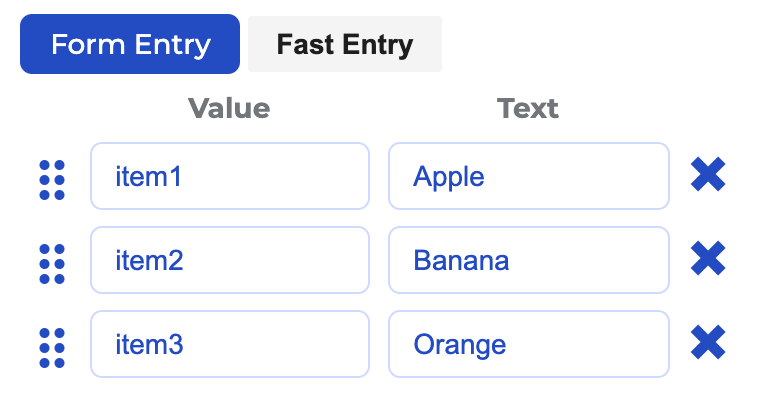
There are two forms of entering answers. The first is using Form Entry.
"Form Entry" contains two columns of data. For each item, you can select the "Value" and the "Text".
- "Value" is a variable name for one of the Choices. It is not seen by the respondent. This is often used in statistical packages for scripting and analysis. By default, the Values are item1, item2, item3, etc.
- "Text" is what the respondent will see.
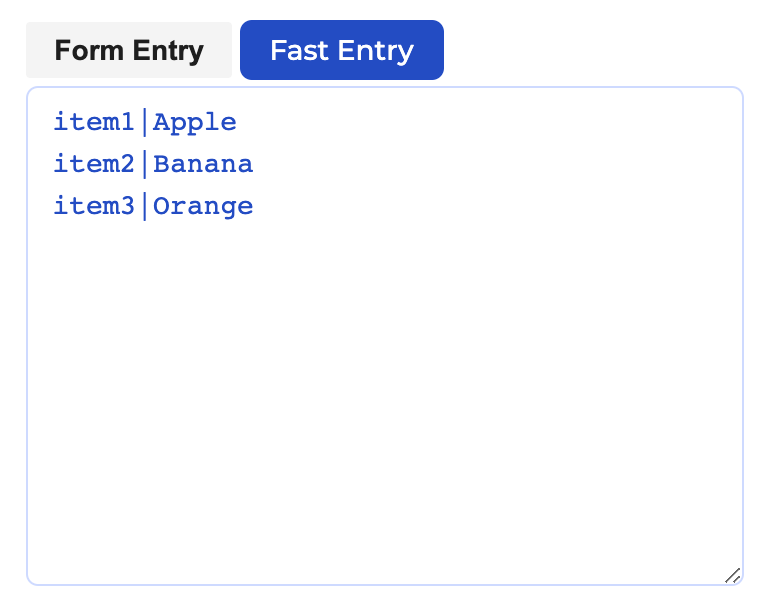
"Fast Entry" enables you to enter and edit Choices more quickly.
Choices Order
- Ascending - choices are sorted in alphabetical order, starting with the lowest number and ending with Z.
- Descending - choices are sorted in reverse alphabetical order, starting with Z and ending with the lowest number.
- Random - choice are randomized
"Other" Option
- Has Other Item - check this box to enable users to enter their own answer.
- Other Item Text - specify what the other option should say. For example, "Other (please specify)"
- Other Item Placeholder - specify what text should appear in the Other item box by default. This text is deleted when a respondent starts typing.
Clear Button
This adds an option for the respondent to clear their selections and start over.
Question Logic
Expressions
You can use "Expressions" to control when pages, questions, and choices are displayed. See the Expressions documentation.
